What this does
Connect the AI assistant you already use, and ask it about your TRESSO posting work in normal language. You decide whether it can only look, or can also make supported changes.
How to use it
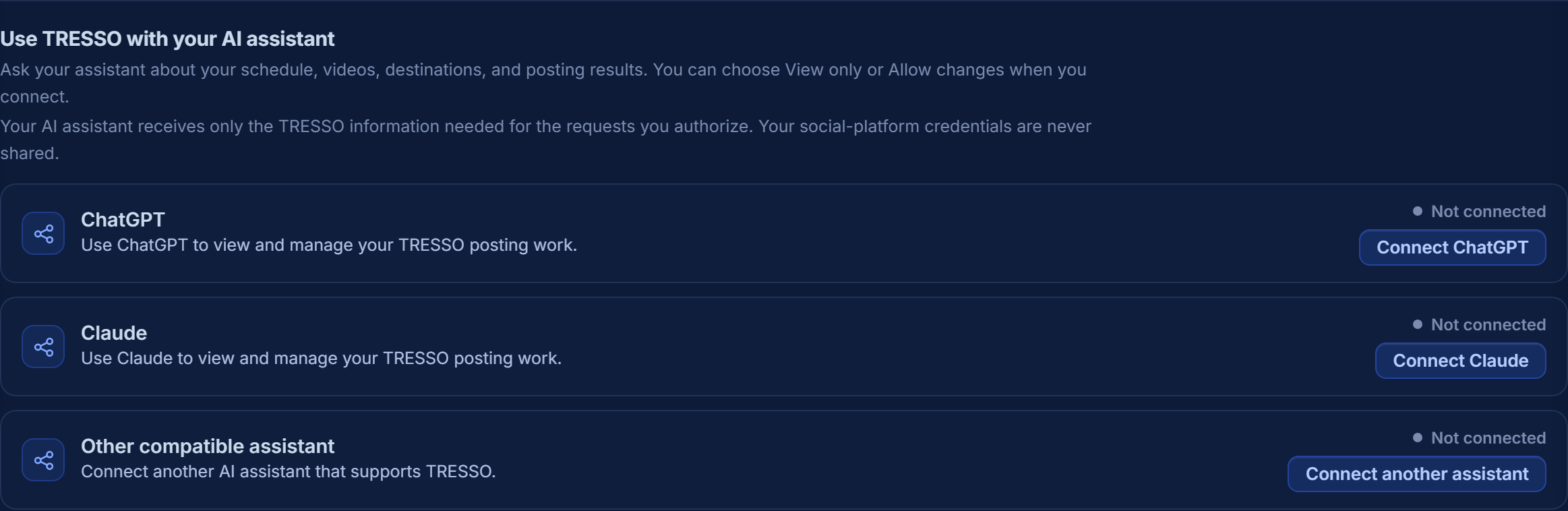
- Open Connections in TRESSO and scroll down to Use TRESSO with your AI assistant.
- Choose Connect on the card for ChatGPT, Claude, or another compatible assistant.
- Follow the steps TRESSO shows. Each assistant's steps are a little different, and every connection lets you choose View only or View and make changes. New connections start at View only.
- Come back and confirm the connection when TRESSO asks.
What you'll see
Good to know
Your social-platform credentials are never shared with the AI assistant.
You decide what an assistant may do, and you can change your mind. Each connection is either View only, which lets it answer questions about your posting work, or View and make changes. TRESSO applies whichever you chose - the assistant cannot grant itself more than you allowed, and asking it to do something outside that is refused by TRESSO rather than by the assistant.
With View and make changes, an assistant can create, edit, schedule, move and unschedule posts, post now, retry failed accounts and turn the Scheduler on or off. For the actions that change live posting - unscheduling, bulk scheduling, posting now, retrying and the Scheduler - the assistant cannot approve its own request. TRESSO asks you in the TRESSO window ("is asking to make a change") with Approve and Decline, and nothing changes until you approve. Approve it only if you asked for it. An assistant cannot connect or disconnect accounts, change settings or see your platform logins, and it names the exact accounts for each post rather than choosing a Publishing Profile.
Turning it off
Open Connections, find the assistant, and choose Disconnect (if setup never finished, the button reads Cancel setup). It stops immediately and TRESSO forgets what it needed to connect, so the assistant can no longer see anything. Your posts, your schedule, your history and your connected destinations are untouched - disconnecting an assistant removes its access and nothing else.
Connecting again later starts from scratch, including choosing what it may do. Nothing is remembered from the connection you removed.