What this does
The Dashboard is a place to check, not a place to work. It answers one question quickly: is anything about to go wrong?
How to use it
- Glance at the headline numbers to see whether posting is moving normally.
- If a post says Publishes from this computer, check the Scheduler state before you walk away.
- Look at what is coming up next.
- If a connection or the Scheduler needs attention, deal with that before building a large batch.
What you'll see
Good to know
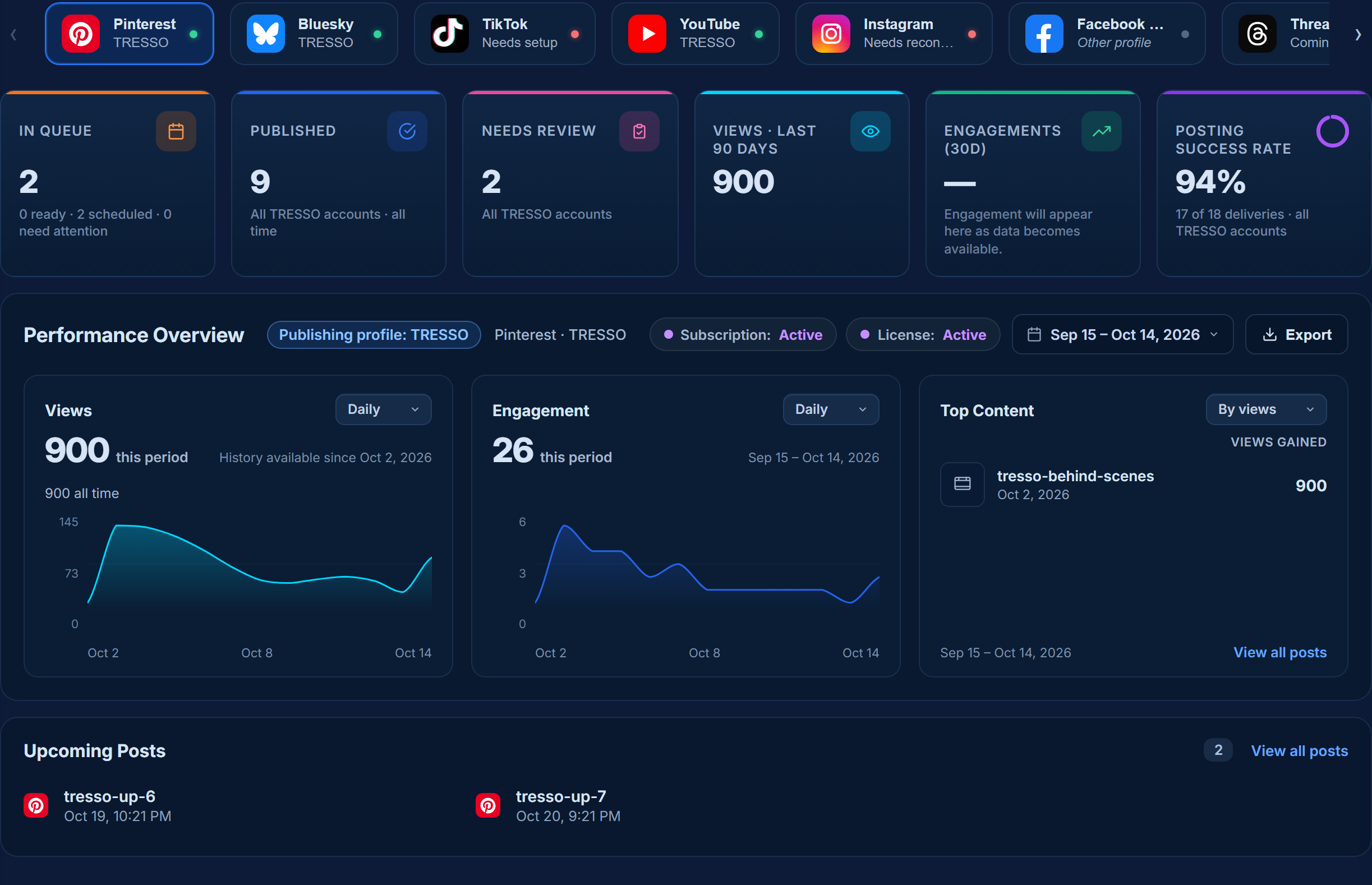
The Publishing profile selector next to the Dashboard heading decides what you see. Every part of the Dashboard - the account strip, the six cards, the charts, Top Content, Upcoming Posts and Export - shows only that profile. An account connected under another profile is never shown as connected here. New Post and Bulk Schedule opened from the Dashboard start in the same profile.
The six cards, and what each one counts. Every card follows the account you select in the strip, and Published, Engagements and Posting Success Rate cover the date range chosen in Performance Overview - the card's label names it:
- In Queue - posts waiting to go to that account now.
- Published - posts published to that account in the range. A post counts here when it is live on at least one account, even if another of its accounts did not publish, so this number can be higher than Archive Vault's Published tab, which lists only posts where every account published. Choosing the card opens Archive Vault with exactly the posts it counted.
- Needs Review - that account's posts that failed or were missed and still need you, counted now rather than by date. If other accounts of the profile have some too, the card says how many more. Choosing it opens Archive Vault listing exactly those posts.
- Total views - each of that account's posts' latest view count, added up, with the date it was measured. The range you choose does not change it; the Views chart in Performance Overview shows the views gained in the range. A dash means the platform reported nothing, which is not the same as zero; "Partial" means some posts have no figures yet.
- Engagements - the likes and comments that account's posts gained in the range. Shares, reposts, saves and clicks are not counted. A change from the previous period is shown only when there is something to compare with.
- Posting Success Rate - of that account's posts that finished in the range, how many published. Posts still waiting or held are not counted as failures, and a retried post counts once, by its final result.
A post saved without a Publishing Profile still counts, under the accounts it went to. An account you removed and added again is recognized as the same account, so its earlier posts still count.
The Views and Interactions charts plot a day only when TRESSO has that day's actual figure. A day without one is left as a gap - never drawn as zero and never filled with a share of a larger total. The verified total for the period stays on the card; when any day is unavailable, the chart says "Total verified. Daily breakdown partially unavailable." Hovering a day shows its date and actual value, or "Daily views unavailable." Measurement periods and how each figure was worked out are under About these numbers.
The Dashboard follows the account you select in the strip: In Queue and Upcoming Posts list only the posts going to that exact account, so two accounts on one platform each show their own. Choosing View all posts, or the In Queue card, opens the Queue already filtered to that account.
Diagnostics, in Settings > Support, counts posts that need review in every profile and its Review button opens All Profiles, so its number can be higher than the Needs Review card on one profile.
When a newer TRESSO is available, a blue notice appears at the top of every screen, including the Dashboard, with a Download update button.
The detail lives elsewhere. Use the Queue, Connections and Archive Vault when you need exact destination-level facts - the Dashboard is deliberately a summary.