What this does
Mobile Access lets you check your TRESSO status from your mobile, and fix a failed post from there. Your mobile does not need to be on the same Wi-Fi. Nothing is shared until you pair a mobile.
From a paired mobile, unlocked with your PIN, you can see the Scheduler, upcoming posts, recent results, your connections and anything that needs attention. For a post that failed to one account, you can choose:
- Retry now - this computer tries that account again straight away.
- Retry at - you pick a time, and this computer tries that account again then.
- Don't post to the account - this computer stops trying to post it to that one account. The other accounts on the post are not affected.
If TRESSO could not confirm whether a post went out, your mobile first asks you to check the platform: Yes, it's there records it as published; No, it's not there. Retry now retries it.
How to use it
- Open Mobile Access in TRESSO and choose Pair a Mobile Device.
- Scan the QR code with your mobile, or open the link. The code works once and expires in 10 minutes.
- Create your PIN on your mobile. To change it later, choose Reset PIN.
- Bookmark TRESSO Companion on your mobile.
- To stop, choose Remove next to the mobile under Paired mobile devices.
Each post shows where it publishes from: Publishes from this computer, Uploading to TRESSO server, or On TRESSO server. Some actions you take from your mobile device also need that computer online.
A post goes to TRESSO's server in two steps: the Queue says Uploading to TRESSO server, then On TRESSO server. Once your post shows 'On TRESSO server,' it can publish while your computer is off.
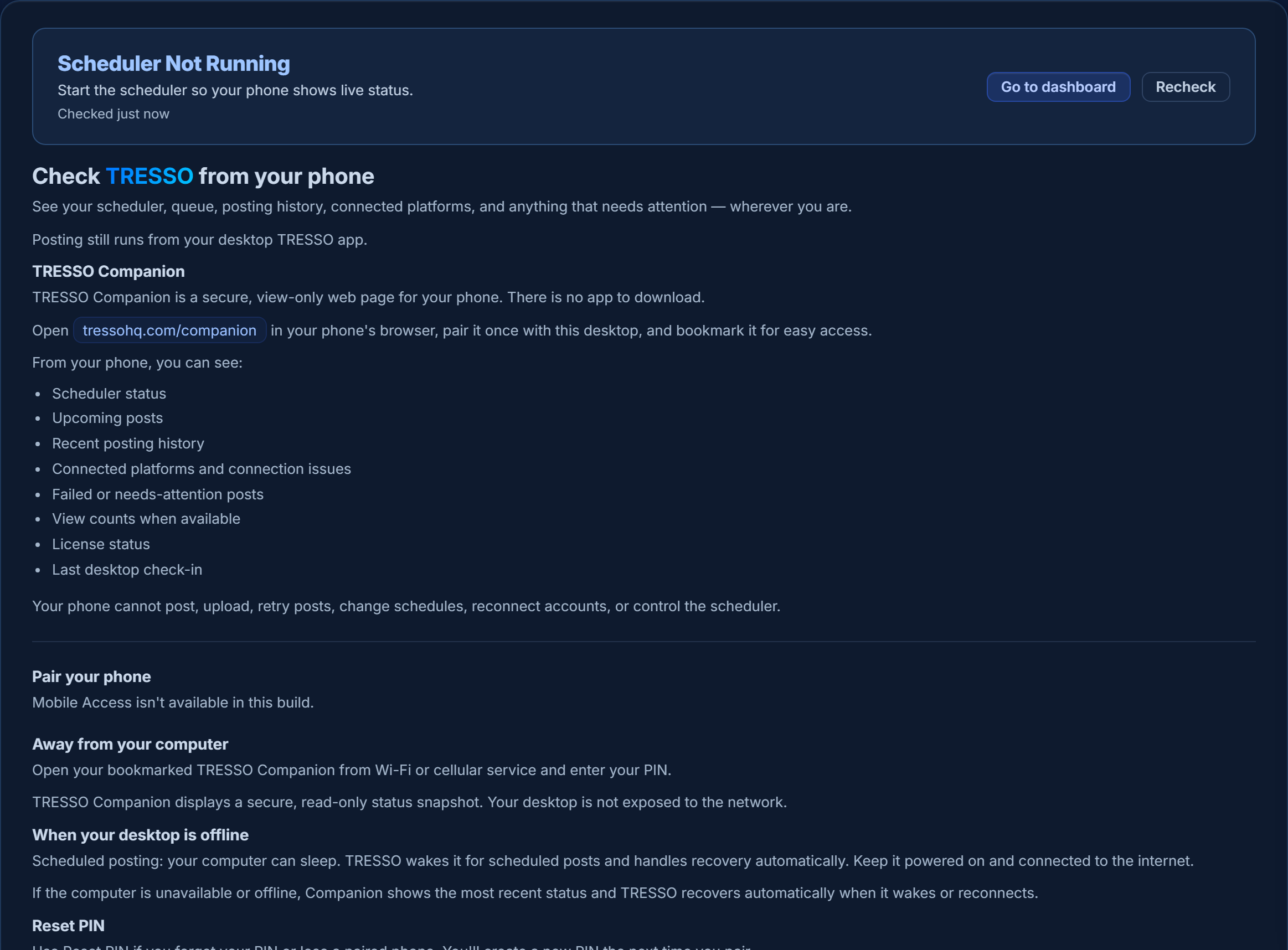
What you'll see
Good to know
Your mobile never posts anything itself. A fix you choose on your mobile goes through TRESSO's server to this computer, which checks it and runs it while TRESSO is running. A request this computer has not picked up within 24 hours expires, and each request is deleted 7 days after it finishes. For a post on TRESSO's server, this computer passes the request to the server.
Your mobile shows the status this computer sends, including Uploading to TRESSO server and On TRESSO server. While this computer is off, your mobile shows the last status it sent. Results of posts published by TRESSO's server appear on your mobile the next time TRESSO is running on this computer.
TRESSO Companion shows a secure status snapshot. This computer is never exposed to the network: it fetches your mobile's requests itself.
Some fixes can only be done on the computer - reconnecting an account, importing a video again, a missed post or a restart. For those, your mobile shows the steps to follow on the computer. TikTok posts are always fixed on the computer.
When a post fails, the email TRESSO sends gives the same guidance as your mobile. If you have Mobile Access set up and your mobile can fix that failure, the email has a Fix on your mobile link that opens the post on your mobile after you enter your PIN.
Your mobile cannot upload videos, edit posts, reconnect accounts or control the Scheduler.
Forgot your PIN? Choose Reset PIN: the next mobile to unlock sets a new one, and paired mobiles stay paired. Lost a mobile? Choose Remove next to it under Paired mobile devices - that is what cuts it off.
This does not move TRESSO into the cloud. Mobile Access does not send your videos, files or account logins anywhere. To show your status on your mobile, TRESSO sends a short status summary (post titles, schedule and results, including why a post failed) to TRESSO's server. Mobile Access needs an activated license and the Scheduler running.
If you do not need it, simply do not pair a mobile.